 Polski
 English
 Українська
 Deutsch
 Español
 Türkçe
 Português (BR)
 Français
 Čeština
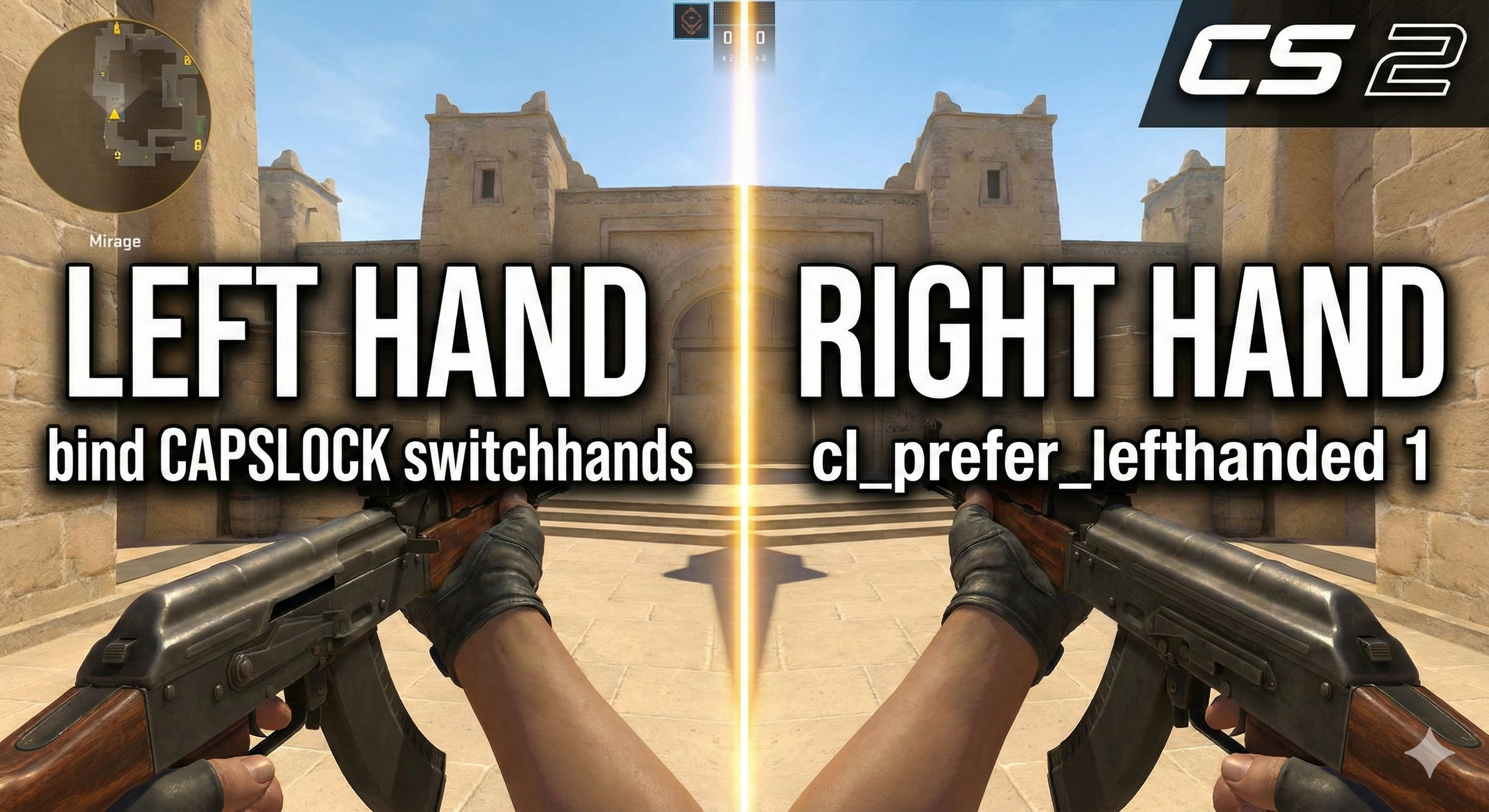

For years, the ability to switch the weapon viewmodel to the left hand was a staple feature in Counter-Strike. When CS2 initially launched, this feature was missing, causing frustration among veterans. However, Valve listened, and the "left hand" feature is now fully integrated into the game.
Unlike CS:GO, where switching hands was purely visual client-side, CS2 implements this differently. This guide covers everything you need to know about the CS2 left hand command, how to set up a bind for instant switching, and why you should use it.
Why Switch Hands in CS2?
Before diving into the commands, it is important to understand why players do this. It is not just about aesthetics; there are two main competitive advantages:
-
Vision Clearance: If you are peeking a corner to your right, having your gun on the right side of the screen blocks your view of potential enemies. Switching the gun to the left opens up your field of view (FOV).
-
Dominant Eye: Many players have a dominant right eye. By moving the weapon model to the left, the dominant eye has a clear, unobstructed view of the crosshair and the target.
How to Set a Permanent Left Hand Preference
If you want your character to always start matches holding the weapon in the left hand, you need to change your default preference. This can be done via the game settings menu or, more quickly, via the developer console.
The Console Commands:
To force the game to prefer the left hand by default, open the console (~) and type:
cl_prefer_lefthanded 1
To revert to the right hand as the default:
cl_prefer_lefthanded 0
Important Note: Changing this setting usually takes effect after you respawn or when the next round begins. It establishes your "default" state. For instant switching during gameplay, you need the command below.
How to Switch Hands Instantly (The Switchhands Command)
In CS2, you can dynamically swap your weapon from right to left in the middle of a round. This is incredibly useful for clearing angles.
The command for this action is:
switchhands
When you type this in the console, your character will perform a short animation (unequipping and re-equipping the weapon) on the other side. Note that unlike CS:GO's instant swap, CS2 has a small animation delay, so you must time your switch carefully before peeking.
Best CS2 Left Hand Bind (2026)
Typing switchhands in the console every time you want to swap is impossible during a firefight. You need to bind this action to a specific key.
The most popular keys for this are CapsLock, Mouse4 (side button), or a key near your movement keys like H or V.
How to Bind to CapsLock
Copy and paste the following command into your developer console to bind the switch action to your CapsLock key:
bind CAPSLOCK switchhands
How to Bind to a Mouse Button
If you prefer keeping your keyboard hand focused on movement, you can bind it to a side mouse button:
bind MOUSE4 switchhands
Troubleshooting: Why Can't I Switch Hands?
If the commands above are not working for you, check the following:
-
Enable Developer Console: Go to Settings -> Game -> Enable Developer Console (~) and ensure it is set to YES.
-
Weapon Limitations: Certain items, like grenades or the defuse kit, may have fixed viewmodels or different animations that do not visually swap as clearly as rifles or pistols.
-
Config Conflicts: If you have an autoexec file from an older version of CS or CS:GO, make sure no old scripts are overwriting your new binds.
By mastering the switchhands mechanic, you can ensure that your weapon model never blocks critical information on your screen, giving you a slight edge in your competitive Premier and FACEIT matches.