 Polski
 English
 Українська
 Deutsch
 Español
 Türkçe
 Português (BR)
 Français
 Čeština
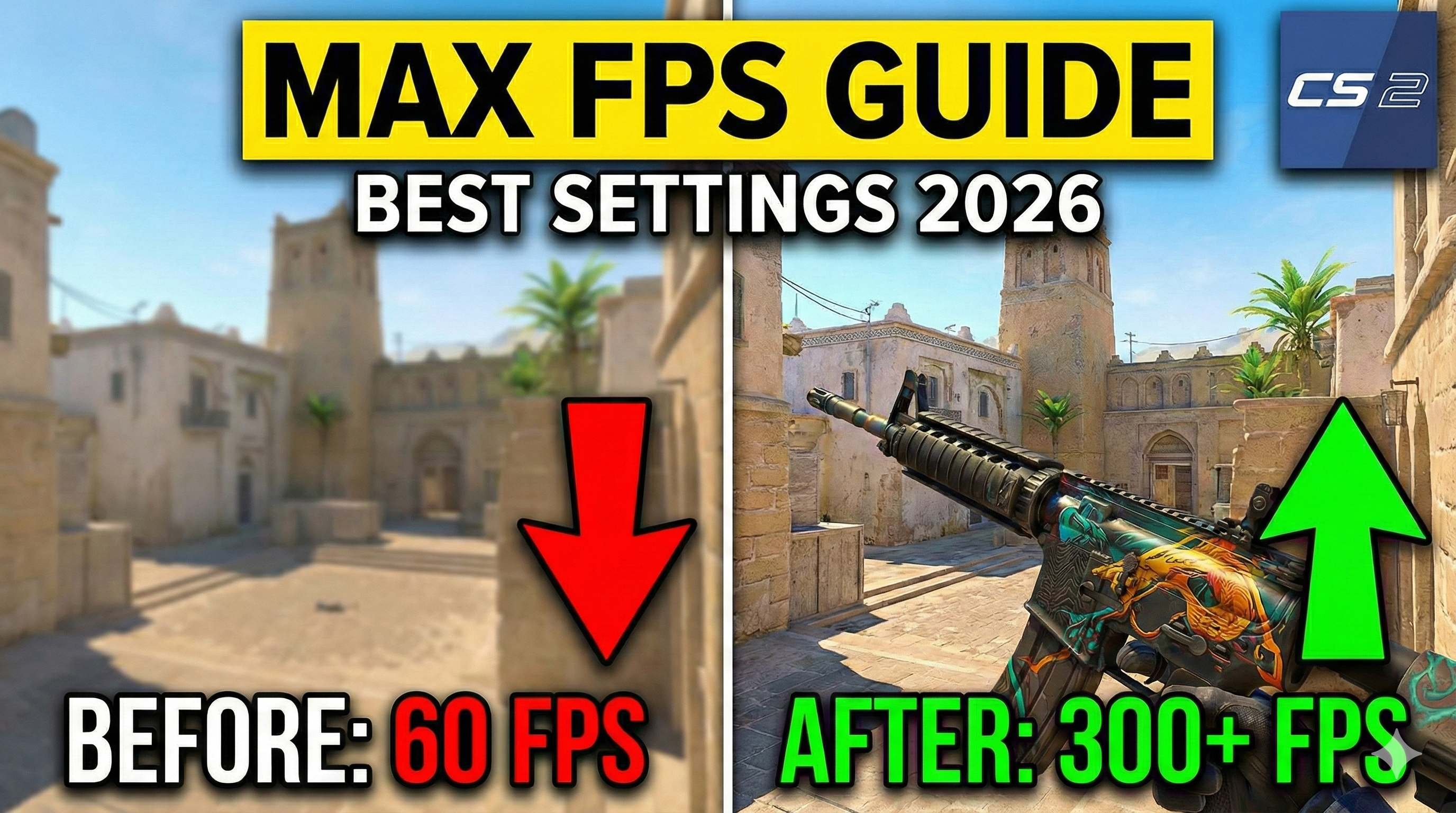

Counter-Strike 2 runs on the Source 2 engine, which brings beautiful lighting and physics upgrades but also demands significantly more hardware power than its predecessor, CS:GO. For competitive shooters, frames per second (FPS) are currency. Higher FPS means lower input lag, smoother tracking, and a tangible competitive advantage.
If you are struggling with frame drops or just want to squeeze every last drop of performance out of your rig, this guide provides the ultimate CS2 optimization strategy. We will cover in-game video settings, launch options, and Windows optimizations to maximize your FPS.
Best In-Game Video Settings for Maximum FPS
The most effective way to gain FPS is by tweaking the "Advanced Video" tab. While CS2 looks great on High settings, competitive players almost always play on Low to remove visual clutter and maximize frame rates.
Here is the optimal configuration for a balance of visibility and raw performance:
Video
Main Menu Background Scenery: Inspectable Map (Uses fewer resources than complex maps) Brightness: 100% (Preference, but higher is usually better for visibility) Aspect Ratio: 4:3 (Normal) or 16:9 (Widescreen)
-
Pro Tip: Many pros use 4:3 with a lower resolution (e.g., 1280x960). Stretching this to full screen makes player models appear wider and significantly boosts FPS because the GPU has fewer pixels to render. Display Mode: Fullscreen (Essential for lowest input lag)
Advanced Video
Boost Player Contrast: Enabled
-
Note: This lowers FPS slightly, but it is critical for spotting enemies in dark corners. Keep this ON. Model / Texture Detail: Low Shader Detail: Low Particle Detail: Low
-
Note: Lowering particles helps significantly during molotov and smoke executions. Texture Filtering Mode: Bilinear
-
Note: If you have a decent GPU, Trilinear or Anisotropic 4x barely impacts FPS but makes skins look much better. For pure FPS, stick to Bilinear. Global Shadow Quality: Medium or High
-
Competitive Note: Do not set this to Low if possible. Medium/High shadows allow you to see enemy shadows cast by the new lighting system, giving you wall-hack-like information. Ambient Occlusion: Disabled
-
Impact: High. Turning this off gives a massive FPS boost. High Dynamic Range (HDR): Performance FidelityFX Super Resolution (FSR): Disabled (Native)
-
Note: Only use FSR (set to "Quality" or "Balanced") if you are on a very old GPU. It renders the game at a lower resolution and upscales it. It adds FPS but makes the game look blurry and adds slight input latency. NVIDIA Reflex Low Latency: Enabled + Boost
-
Impact: Essential for reducing input lag, even if it uses slightly more CPU power.
Essential CS2 Launch Options
Launch options tell Steam how to boot the game. While CS:GO had dozens of useful commands, CS2 requires fewer. Using too many outdated commands can actually cause stuttering.
To set these, right-click CS2 in your Steam Library -> Properties -> General -> Launch Options.
Recommended Command Line: -high -threads 4 -nojoy +fps_max 0
Breakdown of commands:
-
-high: Forces your PC to prioritize the CS2 process over other background apps.
-
-threads X: (Replace X with your CPU's physical core count). This can help with frame stability on some CPUs. If you experience stuttering, remove this.
-
-nojoy: Disables joystick/controller support, freeing up a tiny amount of RAM and reducing input overhead.
-
+fps_max 0: Uncaps your framerate limit (default is often 400).
Windows and Driver Optimizations
Your game settings matter, but your PC environment matters just as much.
1. Update Graphics Drivers
CS2 is frequently updated, and both NVIDIA and AMD release drivers specifically optimized for the Source 2 engine. Ensure you are on the latest version.
-
NVIDIA Users: Open NVIDIA Control Panel -> Manage 3D Settings. Set "Power Management Mode" to Prefer Maximum Performance.
2. Enable Game Mode
Windows 10 and 11 have a "Game Mode" feature that effectively pauses background Windows updates and unnecessary processes while you play.
-
Search for "Game Mode Settings" in the Windows Start menu and toggle it On.
3. Disable Fullscreen Optimizations
Sometimes Windows tries to overlay features on top of your game, causing input lag.
-
Go to your CS2 installation folder (usually
Steam\steamapps\common\Counter-Strike Global Offensive\game\bin\win64). -
Right-click
cs2.exe-> Properties. -
Go to the Compatibility tab.
-
Check Disable fullscreen optimizations.
Summary: The "Competitive Standard"
To summarize, if you want the highest possible FPS without sacrificing the ability to see your enemies:
-
Set your resolution to a 4:3 aspect ratio (e.g., 1280x960).
-
Set all graphics to Low except for Global Shadow Quality (Medium) and Boost Player Contrast (Enabled).
-
Ensure NVIDIA Reflex is Enabled.
-
Keep your drivers updated.
By following these steps, you should see a significant improvement in both average FPS and 1% low FPS, making your sprays feel smoother and your reaction times snappier.